
In this article
Let’s get your monitoring connection back. An offline app alone does not tell you whether the system has stopped generating.
Before you reconnect
Use your phone, app and home router for these checks. Do not open covers, unplug modules, operate breakers or electrical isolators, restart the system or factory-reset equipment.
For a fault message, dead display or tripped breaker, use PSW Life Support. For smoke, burning smells, sparking, unusual heat or visible damage, keep clear and follow the safety advice.
Use your existing mySigen station
This route is for an existing Sigenergy system already linked to your owner account in mySigen. Check the station and device names in the app against your installation documents. A SigenStor system and a standalone Sigen EV AC Charger do not necessarily show the same screens.
If you do not have an account linked to this installation, contact PSW. Do not create a replacement station or attempt to add the equipment again as a shortcut.
Have these ready
- Working home internet. Connect your phone to home Wi-Fi and open a webpage. If it will not load, resolve the home connection first.
- Your Wi-Fi details. Have the current network name and password ready. Enter passwords only in the manufacturer app or confirmed device interface, never in a PSW form or support message.
- Your usual account. Check you can sign in and see your system. Use account recovery if you cannot.
- A safe place nearby. Check the phone has a useful Wi-Fi signal near the equipment. Keep router security and system operating settings unchanged.
Check the connection, then reconnect
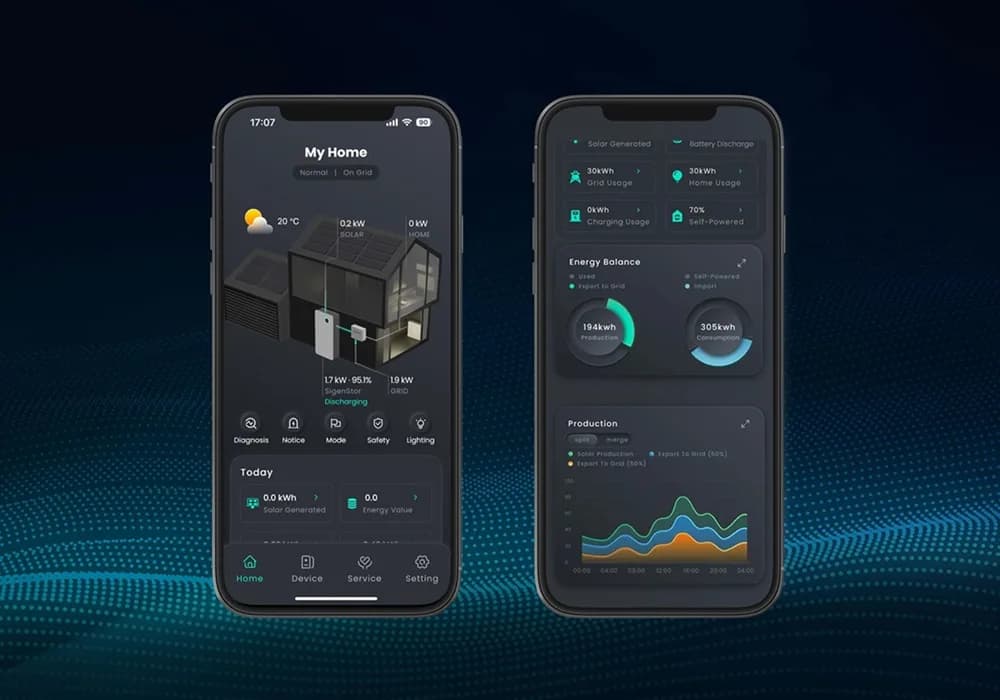
- Open the correct station in mySigen. Under Setting → Connectivity, inspect the available Ethernet, WLAN and cellular connection status.
- If the station is already online by another connection, record what the app shows before changing anything. The user manual warns that changing routers through Connectivity may be restricted when WLAN is the only Internet path.
- For a lost connection, use the app's Setting → Network Configure or Device Configure route. Follow the prompts to connect through the correct device hotspot, select the home network and enter its current password.
- If the required hotspot, menu or owner access is unavailable, stop here and contact PSW. Do not change the system's operating, backup or grid settings.
The linked manual illustrates an earlier app version, so labels may differ. Stay within network connection settings. Do not follow electrical restart steps as part of this Wi-Fi guide.
Confirm monitoring has returned
Return your phone to its normal Internet connection. Reopen the station and check its connection status and the time on the latest reading. If available, Station diagnosis can show communication status. Record any message rather than repeatedly changing settings.
A successful WLAN connection tells us about communications. It does not rule out an equipment fault or confirm that the battery is charging, discharging or providing backup as expected. Use the troubleshooting guide for those symptoms.
Still offline?
If the screen differs or setup fails, pause rather than repeat another model’s steps.
Send PSW Life Support the model, app, last-update time and the step you reached. A screenshot can help; hide private details and leave out passwords. Only photograph safely visible labels.
Different brand? Choose your equipment in the Wi-Fi assistant.
Manufacturer instructions
Use the network section for your exact model and app version. Electrical work and installer settings are outside this guide.